
How to improve mic quality — 10 proven fixes for clearer sound


If your microphone test sounds muffled, noisy, or too quiet, you're in the right place. These 10 proven fixes will help you improve mic quality on any setup — Windows, Mac, USB, or XLR.
Whether for streaming, recording, or online meetings, improving mic performance can enhance communication and listener experience. Learn this practical tips and techniques to optimize mic quality.
We cover microphone types, settings, acoustic treatment, software tools, and hardware options for better sound.
- Understanding microphone types and their impact on sound
- Optimizing microphone settings on your computer
- Acoustic treatment and room setup to improve mic sound
- Software tools to enhance audio quality
- How to improve mic quality on popular communication platforms
- Enhancing microphone quality on mobile devices
- Adding hardware for superior microphone performance
- Testing, monitoring, and continuous improvement
Understanding microphone types and their impact on sound
Different types of microphones can significantly affect audio quality. Knowing which type suits specific recording needs is crucial for achieving the best sound.
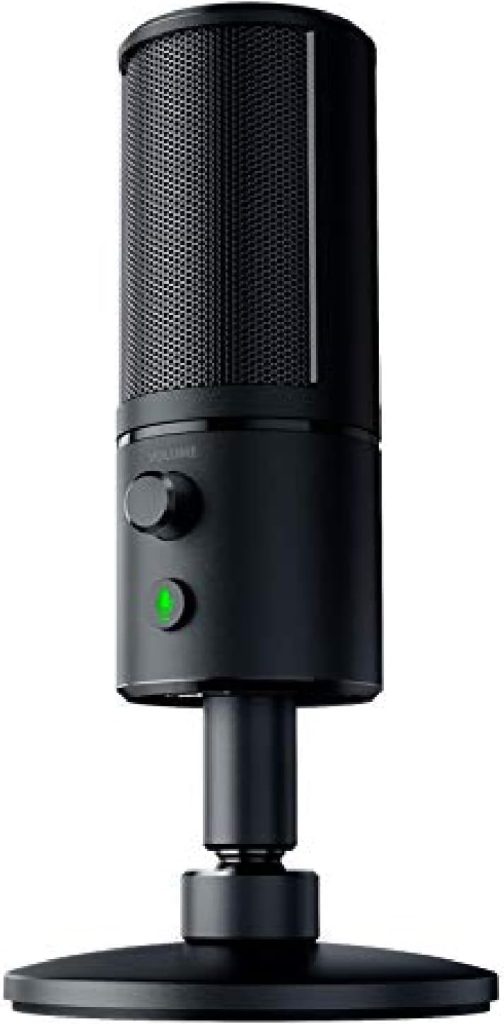
| Type | Best for | Pros | Cons |
|---|---|---|---|
| Dynamic | Live performances, loud environments | Durable, handles loud sounds, no distortion | Less sensitive, narrower frequency range |
| Condenser | Studio vocals, instruments | Sensitive, wide frequency range, clearer sound | Requires phantom power, fragile |
| USB | Podcasters, gamers, casual use | Plug-and-play, easy setup | Lower quality ceiling |
| External (XLR) | Professionals, studios | Superior sound quality, flexible | Requires audio interface, complex setup |
Dynamic vs. condenser microphones
Dynamic microphones are durable and excellent for high-volume environments. They handle loud sounds without distortion, making them ideal for live performances. On the other hand, condenser microphones are more sensitive and capture a wider frequency range. They excel in studio settings for vocals and instruments, but they often require phantom power to operate.
USB and external microphones
USB microphones are popular for their plug-and-play functionality, making them easy to set up with computers. They are convenient for podcasters and gamers. External microphones, typically wired to an audio interface, offer professional quality and flexibility. They require more setup but provide superior sound quality.
Choosing the right microphone for your setup
Selecting the appropriate microphone depends on various factors, including intention and environment. Consider the following:
- For live performances, a dynamic microphone is often the best choice.
- For studio recordings, a condenser microphone can enhance clarity.
- USB microphones serve casual users well, while external setups appeal to professionals.
Paying attention to these characteristics can lead to better audio quality tailored to individual needs.
Optimizing microphone settings on your computer
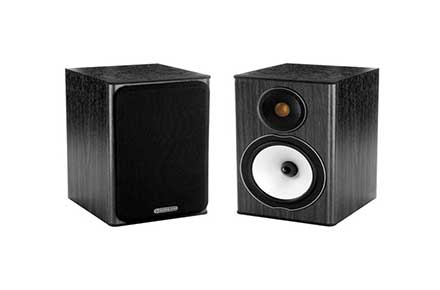
Proper adjustments to microphone settings can significantly enhance audio quality for various applications. Fine-tuning the input volume, keeping drivers up-to-date, and utilizing software tools effectively are essential steps.
Adjusting the input volume for better audio
Input volume settings play a crucial role in achieving optimal audio quality. Setting the input level too low may result in a faint sound, while a high volume can lead to distortion. Follow these guidelines to find the right balance:
- Access the sound settings on your computer.
- Locate the microphone input settings.
- Gradually adjust the volume slider while monitoring the sound levels.
Updating drivers and software for improved mic quality
Outdated drivers can negatively impact microphone performance. Regular updates ensure functionalities remain optimal. Here’s how to manage updates:
- Check your computer's manufacturer's website for driver updates.
- Install software updates from the microphone manufacturer, if applicable.
Using noise reduction and built-In filters effectively
Many operating systems include built-in noise reduction features and filters that can filter ambient noise, enhancing audio clarity. Activating these settings can help minimize background interference during recordings or calls:
- Explore the audio settings menu to enable noise reduction options.
- Utilize built-in filters to smooth out voice tones.
Acoustic treatment and room setup to improve mic sound
Creating an optimal environment for mic recording involves strategic acoustic treatment and sound setup. By managing sound quality in the recording space, significant improvements can be achieved.

How to reduce background noise in your room
Minimizing background noise is crucial for clear recordings. Here are several effective strategies:
- Choose a quiet room that is isolated from external noise sources.
- Seal windows and doors to prevent sound leakage.
- Use rugs or carpets to absorb sound and reduce echoes.
- Consider adding heavy curtains to block outside noise.
Using Pop Filters and Shock Mounts for clearer voice
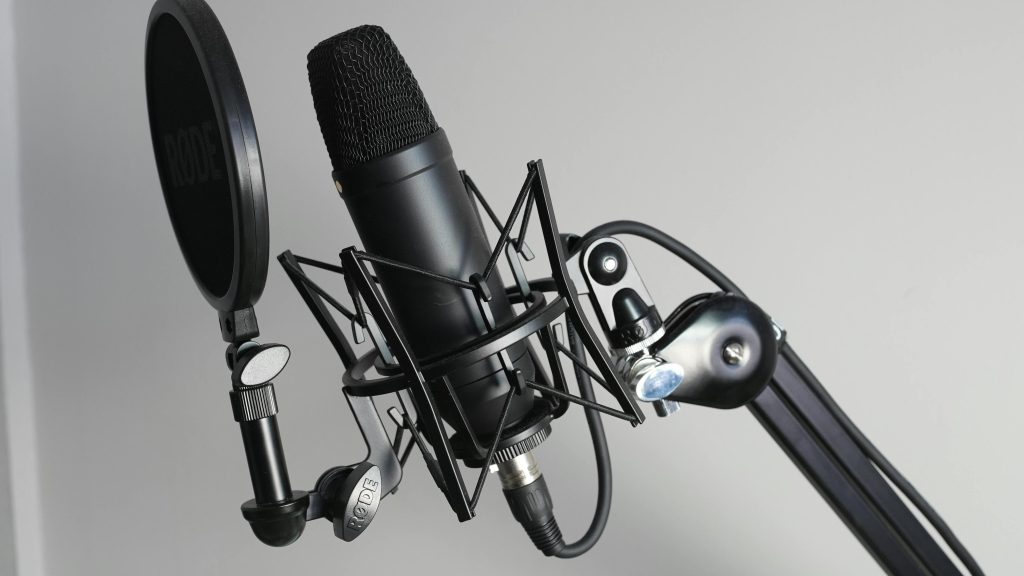
Pop filters and shock mounts can significantly enhance vocal clarity. A pop filter makes sure that plosive sounds, such as "p" and "b," do not create unwanted noise. Shock mounts isolate the microphone from vibrations and handling noise. Utilizing both can lead to more professional-sounding recordings.
Best practices for mic placement and distance
The positioning of the microphone plays a vital role in audio quality. Proper placement ensures the best sound capture.
- Position the mic about 6 to 12 inches away from the speaker's mouth for optimal clarity.
- Angle the microphone slightly to avoid direct breath sounds.
- Test various heights and angles to find what works best for the voice being recorded.
Software tools to enhance audio quality
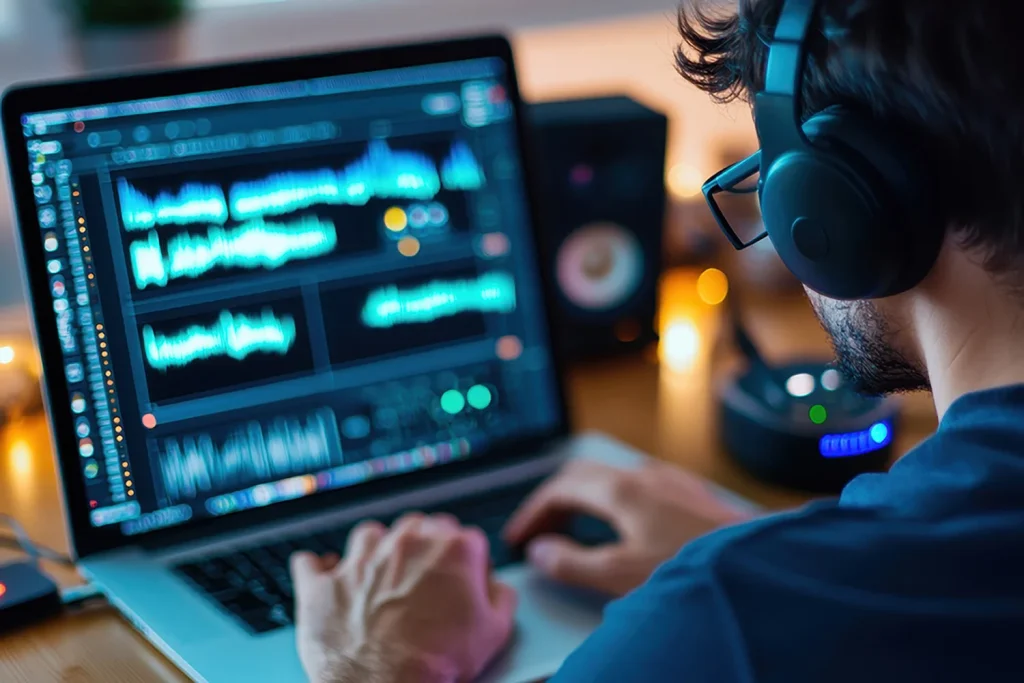
Improving microphone sound can significantly enhance audio recordings. Utilizing software tools helps refine the audio quality further, allowing for greater control over the sound.
Using equalizers to shape your voice sound
Equalizers (EQ) play a crucial role in adjusting audio frequencies. By manipulating different frequency bands, one can enhance clarity and warmth in vocal recordings. Common adjustments include:
- Boosting high frequencies for improved brightness
- Reducing low frequencies to eliminate muddiness
- Cutting mid-range frequencies that may cause nasality
Experimenting with EQ settings can yield a more polished audio output that suits specific needs.
Applying compressors and noise gates
Dynamic control can be accomplished using compressors, which balance the audio levels by reducing the volume of louder sounds and boosting quieter ones. This ensures a more consistent sound.
Noise gates, on the other hand, help eliminate background noise. They work by silencing audio under a certain threshold, effectively cutting out unwanted sounds during pauses.
Recommended noise reduction programs and plugins
Several software programs are designed for effective noise reduction:
- Audacity - Offers built-in noise removal and editing tools.
- Adobe Audition - A comprehensive solution for audio enhancement, including advanced noise reduction options.
- iZotope RX - Known for its powerful noise reduction capabilities and user-friendly interface.
Choosing the right software can significantly elevate the quality of recorded audio by minimizing unwanted noise and enhancing the overall sound profile.
How to improve mic quality on popular communication platforms
Improving mic quality in popular communication platforms enhances user experience significantly. Whether for gaming, meetings, or streaming, various adjustments can lead to clearer audio.

Improving mic sound on Discord
Discord is a widely used platform for gamers and communities. To optimize mic sound, users should consider these tips:
- Adjust Sensitivity Settings: Navigate to User Settings, then Voice & Video. Set the input sensitivity manually to improve audio clarity.
- Enable Automatic Gain Control: This feature can help maintain consistent volume levels, particularly for quieter speakers.
- Utilize Noise Suppression: Enabling this option helps eliminate background noise, making conversations clearer.
Tips for better audio in video calls and streaming
For video calls and live streaming, audio quality is crucial for effective communication. Following these strategies can make a significant difference:
- Use Headphones: Wearing headphones can prevent audio feedback and enhance sound quality during calls.
- Check Software Settings: Always ensure the microphone is the selected device in the audio settings of the application being used.
- Conduct Test Calls: Before important meetings or streams, run test calls to adjust settings and ensure everything is functioning properly.
Enhancing microphone quality on mobile devices
Mobile devices can deliver impressive audio quality when their microphones are optimized. This section provides insights into improving mic performance specifically for smartphones.
Improving mic performance on iPhone and smartphones
The built-in microphones on smartphones, including iPhones, can pick up clear audio if used correctly. Consider the following tips:
- Reduce Background Noise: Choose a quiet environment for calls or recordings to minimize unwanted sounds.
- Positioning: Hold the phone close to the mouth, ideally 6-12 inches away, to capture sound more effectively.
- Mute Other Apps: Close unnecessary applications to prevent additional noise interference.
Apps and settings to make your phone mic sound better
Several applications can enhance audio quality. Many smartphones come with built-in voice recording apps that allow for basic adjustments. Explore these enhancements:
- Equalizer Settings: Some recording apps include an equalizer to adjust frequencies, helping to improve vocal clarity.
- Dedicated Recording Apps: Utilizing apps designed for professional recording can provide additional control over sound quality.
- Voice Modifiers: Applications that offer noise suppression can significantly enhance clarity, especially in noisy surroundings.
By applying these strategies, users can achieve optimal audio quality on their mobile devices, facilitating clearer communication and improved recordings.
Adding hardware for superior microphone performance
Upgrading hardware can significantly enhance microphone performance. By incorporating the right tools, users can achieve clearer audio and a more professional sound quality.
Benefits of using an audio interface
Audio interfaces serve as a bridge between the microphone and the computer. They offer several advantages:
- Improved sound quality due to better analog-to-digital conversion.
- Lower latency, which allows for more real-time monitoring.
- Multiple input options for connecting various microphones and instruments.
Choosing directional microphones for noise reduction
Directional microphones are designed to focus on sound from specific areas while minimizing background noise. Using a cardioid or supercardioid microphone can help enhance voice clarity. Consider the following benefits:
- Reduced pickup of unwanted ambient noise.
- Focused audio capture, ideal for speech and vocals.
- Versatility for different recording environments.
External accessories that improve microphone quality
In addition to microphones, various accessories can boost audio performance:
- Pop filters: These are crucial for eliminating plosive sounds, which can distort audio.
- Shock mounts: These stabilize the microphone, reducing vibrations and handling noise.
- Cables: High-quality cables ensure better signal transmission and reduce interference.
Testing, monitoring, and continuous improvement
Continuous testing and monitoring are vital for achieving the best microphone performance. Regular evaluation helps ensure that audio quality remains high, making communication clearer and more effective.
How to record and evaluate your mic sound
Recording sound effectively involves capturing the audio output from the microphone under various conditions. Set up a simple recording environment, then use software applications to record your voice.
- Test different settings and configurations to see what works best.
- Listen to recordings for clarity and detail.
- Compare results when using various mic placements.
Gathering feedback and making adjustments
Feedback is essential for improvement. Share recorded audio with trusted colleagues or friends.
- Ask for specific thoughts on sound clarity, background noise, and overall quality.
- Make notes on suggestions for adjustments.
- Implement changes and continue to seek input.
Troubleshooting common mic quality issues
Common problems may arise that affect audio quality. Understanding how to fix these issues is crucial.
- Address latency by adjusting sample rates in your audio settings.
- Clear background noise by experimenting with microphone placement and direction.
- Check wiring and connections if there are persistent static or distortion issues.
Made the adjustments? Run a free mic test to confirm your audio is clean, balanced, and working correctly — no downloads needed.